How to use Cutulator

Laid out the same way as the app's home screen β€” find the tool you're standing in front of, tap it open. The numbered steps here are the same numbered cards you'll see on screen.

First run β€” two minutes

πŸ“² Getting the app 3 ways, same app

Download on the App Store Get it on Google Play or any browser at cutulator.app.

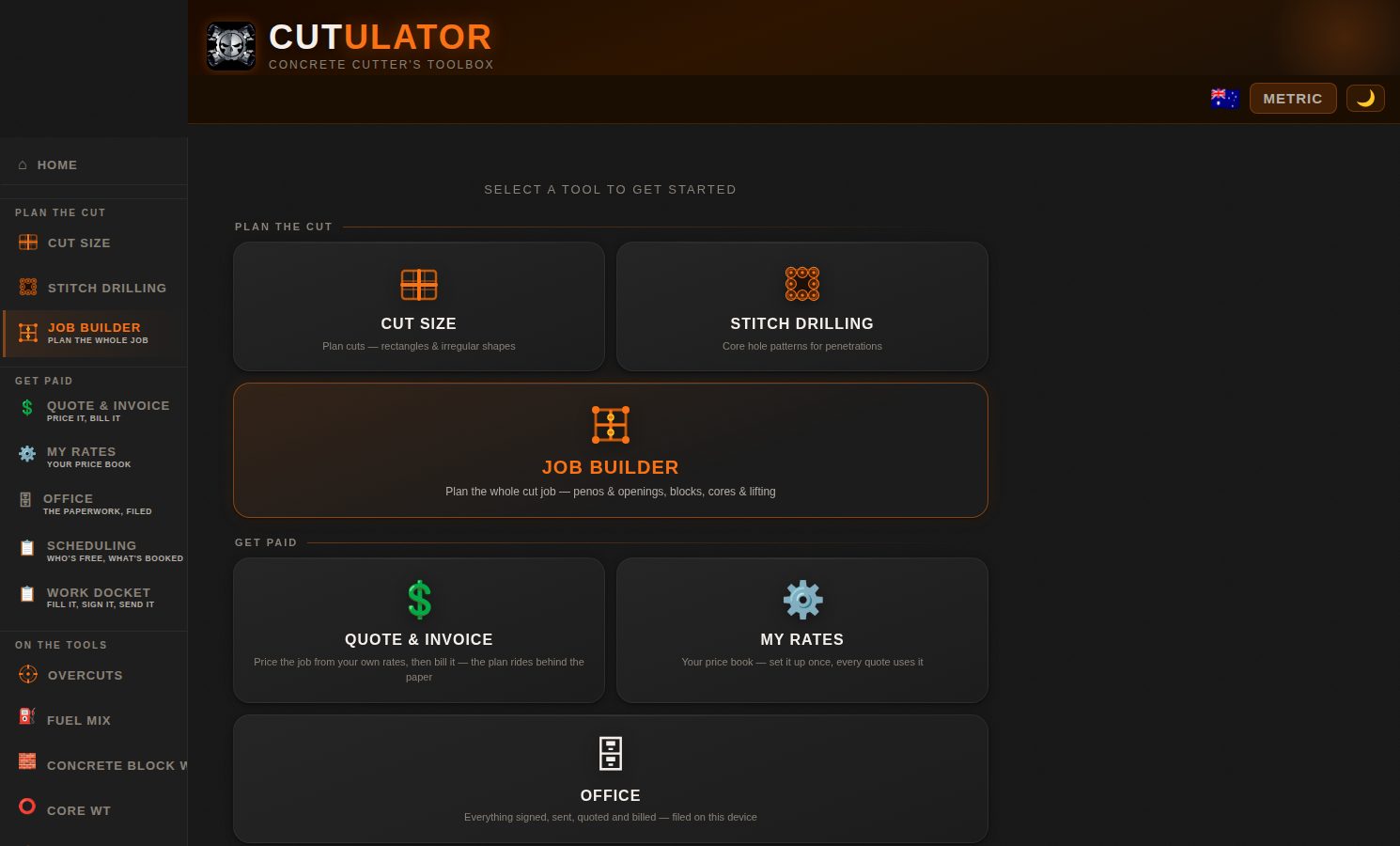
Cutulator's home screen on a computer β€” every tool in one place

On the office computer it opens in its own window, like a normal program.

  • Phone browser: open cutulator.app β†’ Share β†’ Add to Home Screen. Installs like an app, and works with no signal.
  • Office computer: open cutulator.app in Chrome or Edge β†’ click the install icon at the right end of the address bar β†’ Install. It gets its own window and icon. Mac Safari: File β†’ Add to Dock.
🌏 Setup tab country · units · density
  • Where you work sets your currency, tax and how the paperwork reads. Pick the closest if yours isn't listed β€” every rate is yours to type over anyway.
  • How you measure β€” Metric or Imperial, one tap either way, remembered, independent of country. Imperial boxes take real tape fractions: 8 1/2, 3/4, 1' 6 1/2".
  • Concrete density β€” every weight in the app comes from this one number. The default errs heavy on purpose: these are lifting weights.
Your data stays on your device. Rates, clients, invoices, dockets β€” no account, no cloud, nothing uploaded. Ever.

Plan the cut

The three planning tools, smallest to biggest. Every result has πŸ“‹ Copy Β· πŸ“€ Share Β· πŸ“„ PDF.

🟧 Cut Size slab β†’ liftable blocks
  1. Type the slab's length, width and depth β€” or tap ⬑ Draw Slab / Peno Shape and place the corners on the grid, then type exact side lengths and βœ“ Apply.
  2. Pick the block size By Weight (what you can lift) or By Dimensions. Fit to Slab stretches blocks slightly so they divide evenly β€” no offcut; Lock keeps your number exact.
  3. Read it back: block count, each block's weight, total cutting metres β€” and Which way to cut it compares both orientations and flags the one with fewer cuts.

Full penetration removal treats the slab as a peno and cuts the outer perimeter too. For the full job β€” relief cores, lifting, machines β€” step up to Job Builder.

πŸ”² Stitch Drilling break a peno out with cores
  1. Rectangle, circle, or draw the shape. Enter the depth.
  2. Set core diameter and overlap β€” the centre-to-centre spacing works itself out.
  3. Perimeter only, or add an internal grid by block size or target weight.

You get total cores, perimeter and internal counts, total drilled metres, each core's weight and the net block weights. Standard edge keeps every hole inside the line; Clean Edge lands the scallops on the line itself for a clean finished face.

πŸ—οΈ Job Builder the whole job, one screen
  1. 1Penetration & edges. Slab or wall, sizes typed or drawn. Then tap each side of the picture and tell it the truth: finished line β†’ open / free β†’ against wall / floor. The plan respects every answer β€” an obstructed edge gets its own finish (this saw with a flush kit, stitch drill, or wire).
  2. 2Machine. Pick the saw; it brings its reach, blade and flange, overcut and relief needs. Machines that can't do this peno grey out.
  3. 3Are overcuts allowed? No (default): every cut end that would overrun into kept concrete gets relief cores, corners included. Yes: only where an engineer has approved the overrun.
  4. 4Blocks. By dimensions, by target weight, or whole piece. Check the resulting weights β€” they print everywhere.
  5. 5Lifting cores. None for hand-carried; add per-block cores if a crane or forklift is lifting. ✏️ Edit lifting cores lets you tap and drag them.
  6. 6Slither cut. A thin hand-removable strip that gives the row below room to tilt out. Drag the hatched strip to place it.

✎ Edit plan is yours: drag any cut or core and the engine re-derives blocks, weights, metres and cores around your change. Then πŸ“„ PDF for the crew β€” or πŸ’² QUOTE THIS JOB and every line prices itself from your book.

The Work Docket

Fill it onsite, the client signs it, one file goes to the office. The six numbered cards on screen, in order:

πŸ“‹ Filling it in β€” cards β‘  to β‘€ write it like you'd write it
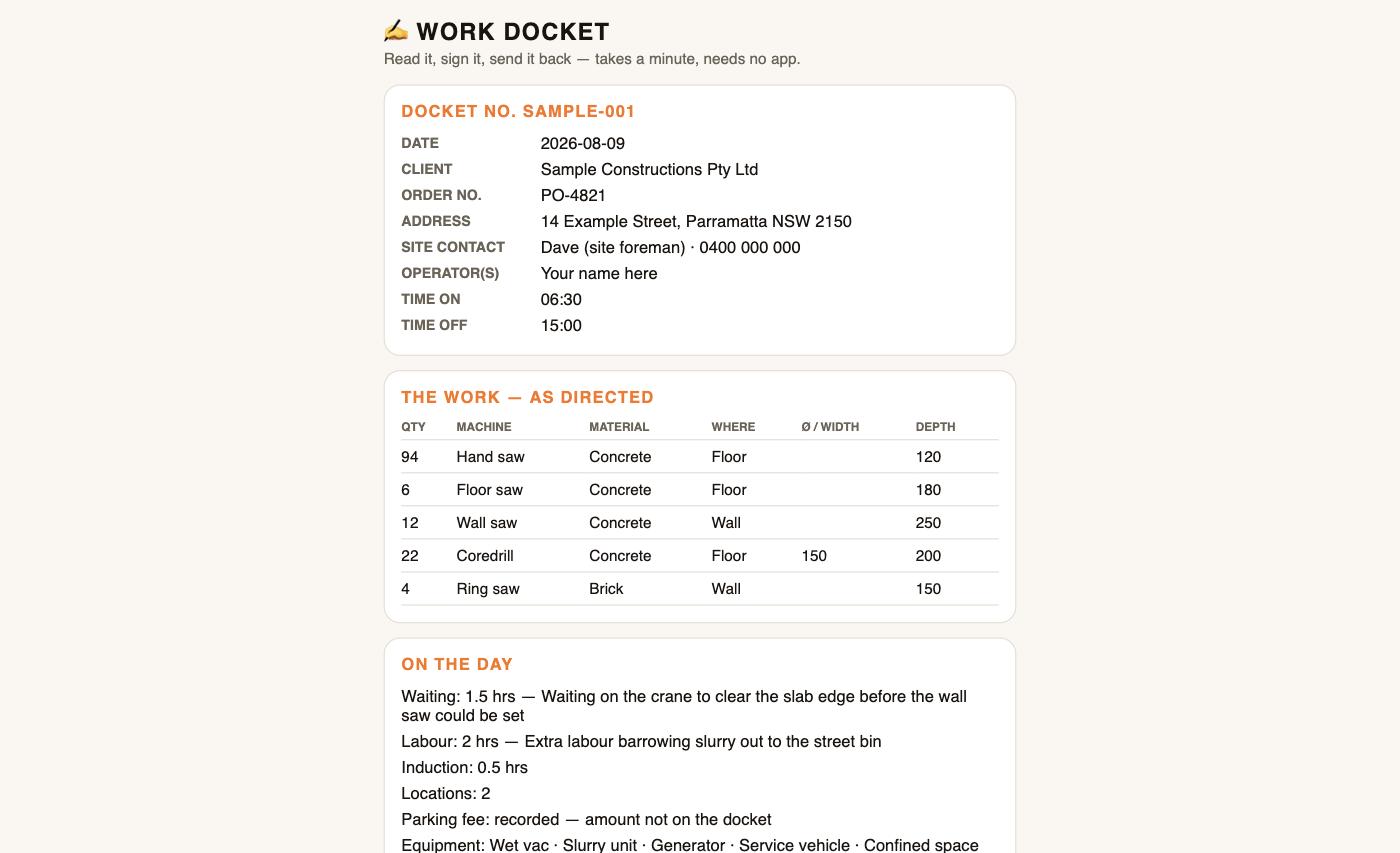
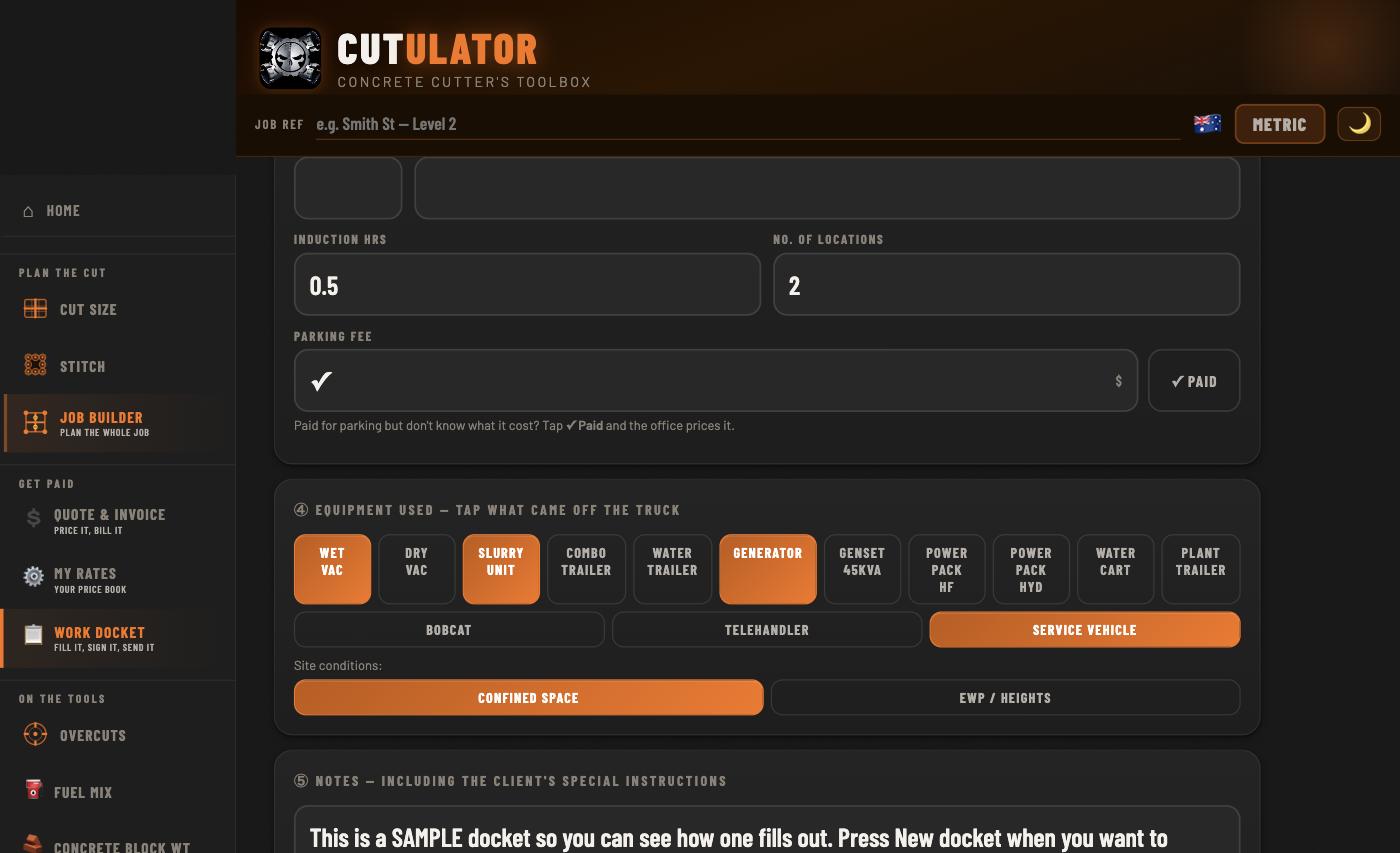
The work docket β€” the extras with their reasons, and the equipment chips

Cards β‘’ and β‘£: the extras carry the reason, and equipment is a tap each.

  1. 1The job. Client, order number, address, contact, operators, times. Past clients suggest themselves from your own archive β€” on-device only.
  2. 2The work β€” as directed. One line per item, written the way you'd write it on paper: 94m handsaw concrete slab 120. Tap a machine name to save typing; sizes with units ("300mm", "0.3m") are believed as written. Tap a line to edit, mark angled holes with β†— Angled.
  3. 3The extras. Waiting, labour, extra man, induction β€” hours plus the reason, because the office prices what it can read. Parking: the fee if you know it, or tap βœ“ Paid and the office prices it.
  4. 4Equipment used. Tap what came off the truck β€” wet vac, slurry unit, generator β€” and the site conditions. Ticks become priced lines at the office.
  5. 5Notes + photo. The client's special instructions, and a photo of the finished cuts.

🦺 JSA / Pre-Start is its own page behind the button under the docket number β€” optional, there when the site wants it. Boxes cycle βœ“ β†’ βœ— β†’ N/A β†’ blank (N/A is a real answer). The checklists are whatever the boss typed in My Rates, with their own two signatures β€” the JSA signer and the docket signer can be different people.

✍ Card β‘₯ β€” sign-off, both ways on your phone or theirs

Together on site: the client signs the pad on your phone (β€’ Sign big for a full-screen pad), you sign as witness. Done.

Not together: tap πŸ”— Send to client to sign β€” the link copies itself, text it to them. What they see:

The page a client opens from the link β€” the docket, no app to install, no prices

Exactly what your client opens. No app, nothing to install, and not a price anywhere on it.

  1. A plain web page β€” no app, nothing to install, no prices on it. The docket, the hours, the checklists as ticked.
  2. They sign with a finger, print their name, add their PO and notes if they want.
  3. They press one button. Their signature comes home to your phone by itself β€” the app checks whenever you open the docket and every 30 seconds while one is out, and tells you the moment it lands.
  4. The page offers them their own signed PDF to keep, and (if your mobile's in My Rates β†’ You) a one-tap "text the cutter it's signed."
Security, plainly: the docket travels scrambled (AES-256). The key rides only in your link and never touches a server β€” the server holds a blob it cannot read, and links die after 30 days.

Then β‡ͺ Send to office β€” ONE file that reads as the signed PDF and opens in Cutulator at the office. οΌ‹ New docket files this one under πŸ“ Past dockets and starts the next.

The office

Usually the boss's phone, or cutulator.app installed on the office computer.

πŸ“₯ Docket in β†’ invoice out the daily loop
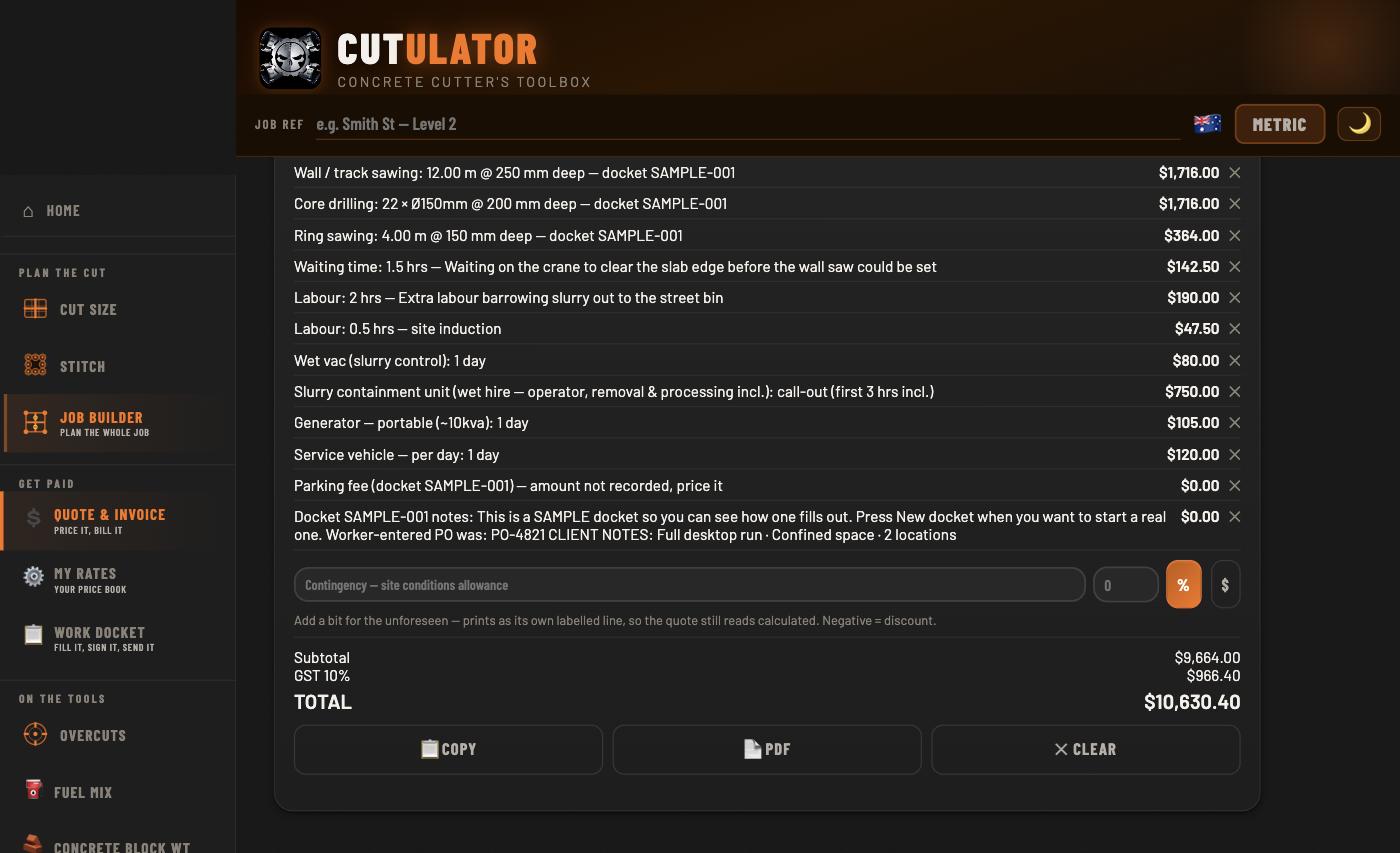
A tax invoice priced from the docket β€” every line, GST and the total

The docket above, priced off the book and turned into a tax invoice. Every line reads back to the work that was done.

  1. Quote & Invoice tab β†’ card β‘’ β†’ πŸ“₯ From a docket β†’ pick the file the worker sent (the PDF itself, or an old .json β€” both work).
  2. Everything lands as lines: work rows at $0 for you to price (cores with real sizes price themselves off the book), hours at their rates, ticked equipment as daily lines, the parking, the notes.
  3. Price the $0 lines (tap, type), flip the switch to 🧾 Tax invoice, PDF, send. Re-importing a corrected docket replaces its lines β€” nothing doubles.

πŸ“₯ Received dockets keeps every import: Open shows the signed record itself β€” ink, photo, checklists; Load re-prices it; βœ• clears it. Status flips to invoiced when the invoice prints.

πŸ—„ Past papers your debtors book

Beside Past dockets. Every quote and invoice files itself here the moment its PDF is made β€” number, client, date, status. The orange ones are your unpaid invoices; tap βœ“ Paid when the money lands. Open reprints any paper exactly as it went out β€” your rates moving later never rewrites an old invoice. Holds a year and more.

πŸ“ˆ Xero, MYOB & QuickBooks month-end in one file

On the Past papers card: ⬇ Xero CSV β€” this month (or last month, or the financial year). The file is built to Xero's own import format β€” Sales β†’ Invoices β†’ Import, straight in. MYOB AccountRight, QuickBooks Online and Reckon import the same file through their column-mapping screens. Amounts ex-GST, tax named on every line, exactly as the importers want.

Bookkeeper uses a particular sales account code or tax rate name? Set the two Accounting rows in the rates spreadsheet β€” otherwise Australian defaults apply. ⬇ Ledger CSV exports your own full record β€” every paper, status, paid date.

Scheduling β€” the booking board

The office's engine room: who's free, what's booked, and every job wearing the day the client wants you there. On a phone it stacks in one column; on the office computer the crew stands beside the queue, and ⧉ OWN SCREEN puts the board alone on its own monitor.

πŸ“ž Book a job β€” the phone rang typed once, used everywhere
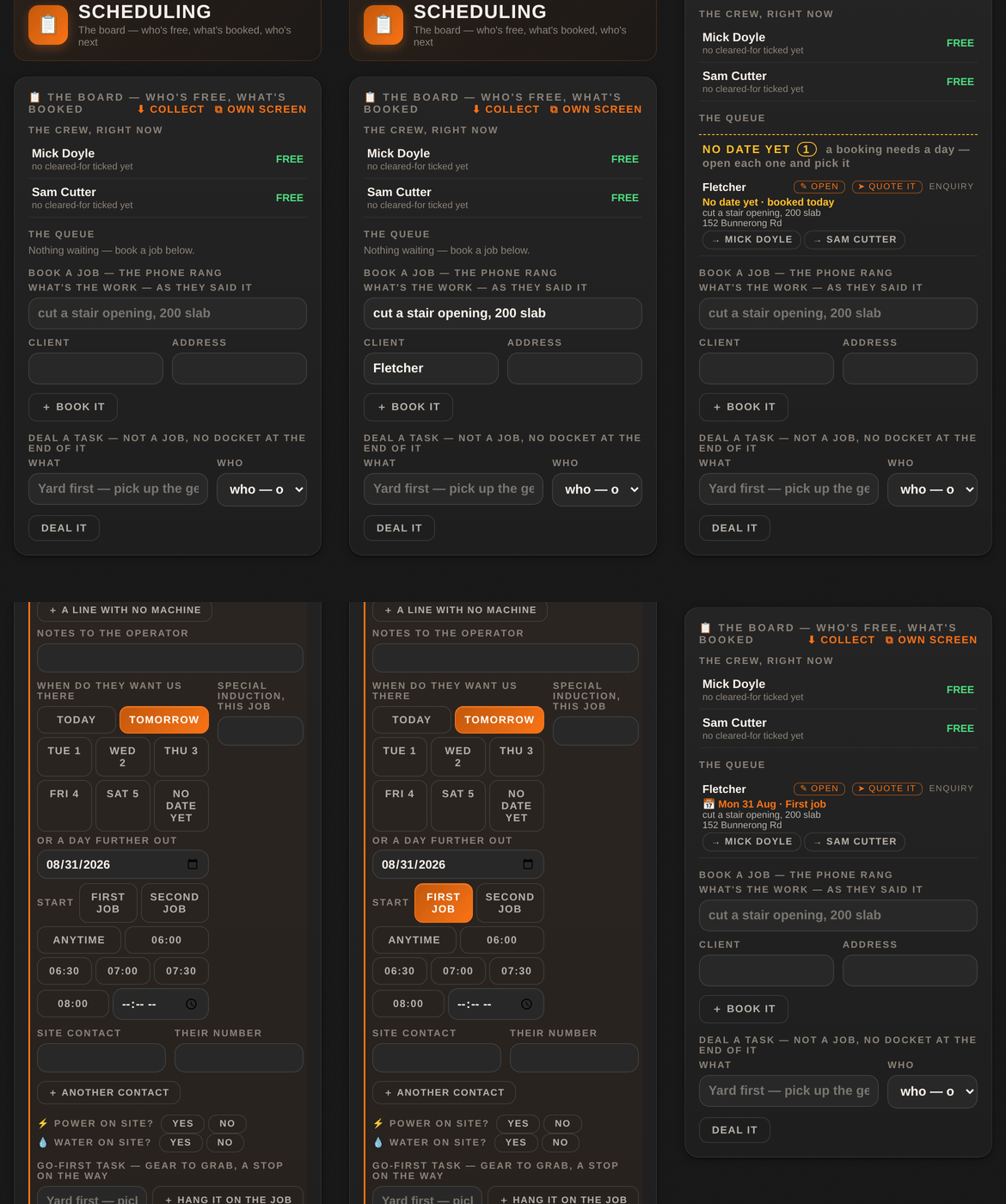
Booking a job on the board β€” the work as they said it, client, address, then the day

The phone call, straight onto the board β€” and the day picked in two taps.

  1. Scheduling tab β†’ Book a job β€” the phone rang. Type the work as they said it (cut a stair opening, 200 slab), the client, the address β†’ οΌ‹ Book it.
  2. The client and address boxes remember β€” past jobs and dockets suggest themselves as you type, on-device only.
  3. Tap the job to open its card: the plan lines (the docket's own seven columns, machine chips from your one machine list), site contacts β€” as many as the site needs β€” power and water, notes to the man, and a go-first task if he has to grab gear on the way.
Typed once. Everything the booking knows β€” client, site, contact, the plan's lines β€” lands on the work docket already filled in when the day comes. Nobody retypes what the office already typed.
πŸ“… The day they want us there a day, not a guess
  1. On the job's card: When do they want us there β€” Today, Tomorrow, the next five days as chips, or a date box for anything further out.
  2. Start is a real answer, not always a clock: First job Β· Second job Β· Anytime β€” because plenty of clients don't want you at six and are happy to wait until someone finishes their first job β€” or a clock time when there is one.
  3. No date yet is honest and allowed β€” see the pile below. Words typed on an old booking ("confirm Mon arvo") are kept and shown until you pick the day.

Every job in the queue says its day on its own line β€” πŸ“… Tue 1 Sep Β· Second job β€” and the queue sorts by day, jobs with a set time first.

πŸ•³ NO DATE YET β€” the pile nothing gets forgotten
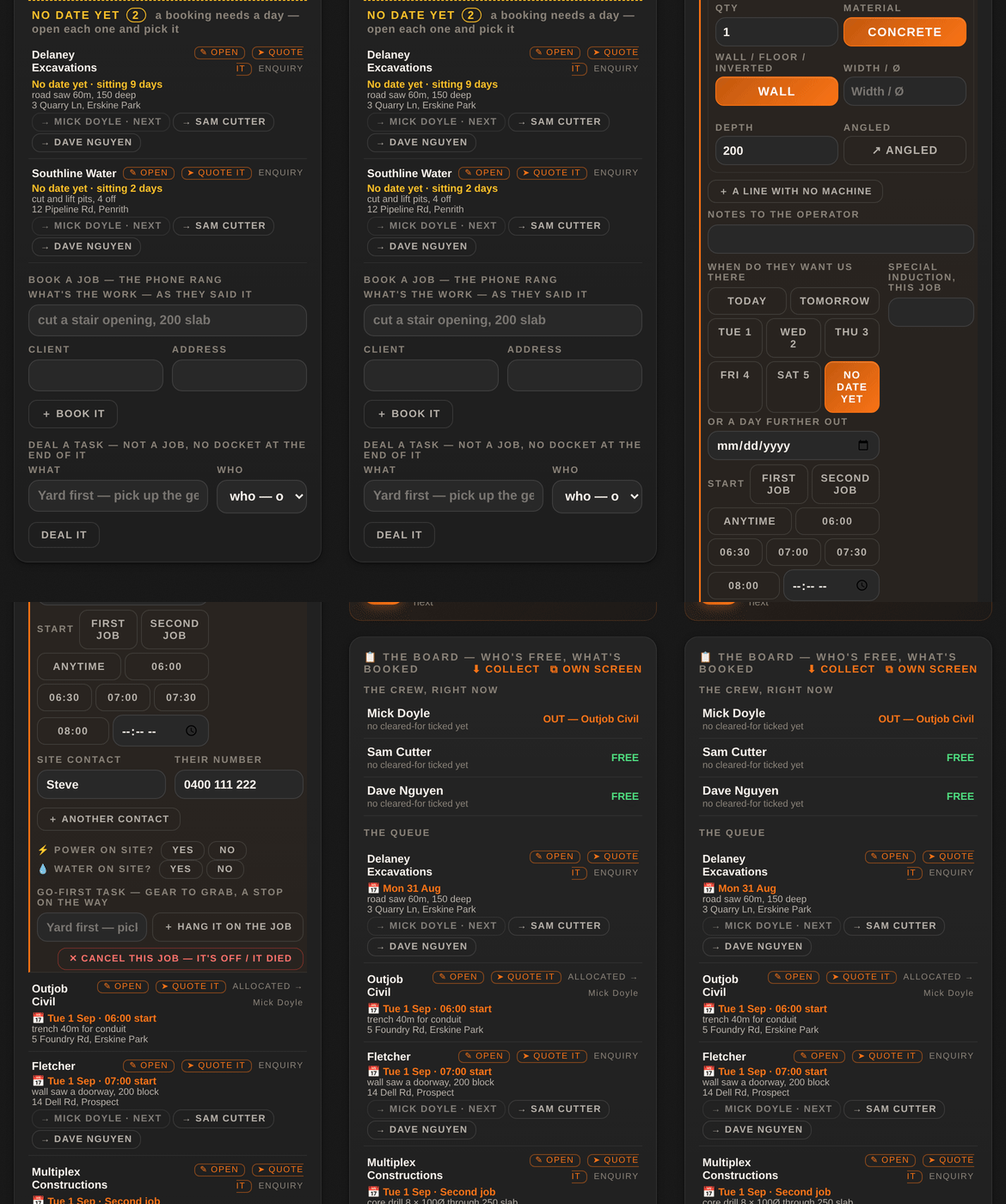
An undated job waiting at the bottom of the queue gets its day and takes its place

A job with no day waits where you can see it β€” and two taps place it.

Jobs with no date sink to the bottom of the queue under one heading, NO DATE YET, oldest first, each one wearing its age β€” sitting 9 days. A booking needs a day; until it has one it sits where you meet it every time you book anything, so the job the client rings about is never the one nobody looked at.

🀝 Deal it β€” who's free the deal is the send
  1. The crew, right now reads FREE or OUT against every name, with what each man is cleared to run beside him at the moment you decide.
  2. Tap β†’ his name on the job. A busy man's button says Β· next β€” the job queues behind what he's on.
  3. The deal is the send. The job lands sealed on his phone β€” client, site, times, notes, the plan. No second button to forget. His rates? There aren't any on it β€” prices never ride.
  4. ⬇ COLLECT pulls the crew's word back β€” who's done, what's landed.

A finished visit can be dealt again β€” same job, next day, same or different operators. Carry-over is the trade's normal day, not an error.

🧰 Deal a task β€” not a job no docket at the end of it

Deal a task β€” not a job, no docket at the end of it: go to the yard, pick up the genny, drop the wire saw off for service. Type what, pick who from the roster (or leave it undealt) β†’ Deal it. A task ends in done, not paper.

A go-first task typed on a job's card hangs on that job and rides first on the man's day β€” the gear gets picked up before he drives past the yard.

πŸ“… My Day β€” the cutter's end of it done Β· doing Β· next

On the man's phone, the My Day tab: what the office dealt you β€” where, who, what to know. His day is a sequence, not a timetable: what he's done, what he's on, and what's next only once the office has dealt it β€” because nobody really knows how long a job takes, and the office usually hands out the next one when he calls in free.

βœ… I'M DONE tells the office he's free β€” no phone call needed. And when he opens the docket for the job he's on, it starts already filled in from the booking.

πŸ’² A job to a quote, a quote to a job linked by their numbers

➀ QUOTE IT on a job's card opens Quote & Invoice with the plan's lines carried across, and the quote number rides back on the job. Going the other way, πŸ“… Book it on a quote puts it on the board as a QUOTED job. Both roads are real β€” some jobs start with a phone call, some start with a quote β€” and the paper trail holds together by the numbers.

Never a dollar on the board itself. Money lives in Quote & Invoice; the board holds the work.

Setting up your phone

For everyone on the tools β€” crew and quoters. When your card is not finished, a πŸ›  Set-up counter sits in the top bar where the quote total goes. Tap it: it opens the thing it wants next and tells you which step it is. Show me how on that message opens the matching part of this page. The counter disappears for good once the list is done, and a live quote always outranks it β€” your money is never covered by a nudge.

πŸͺͺ Your name step 1

Setup tab β†’ Your name. This is the one name the app has for you: it prints on your card, on the dockets you sign and on the ticket bundle you hand a site office. Type it the way it appears on your tickets β€” a docket signed "Jaz" against a white card that says "Jarrod Rapson" gets questioned at the gate.

Your card reads this name; it never keeps a second copy. Change it in Setup and everything follows.

πŸ“Έ Your photo step 2

Tickets tab β†’ tap the face on your card β†’ take one or pick one. Head and shoulders, no hard hat over your eyes β€” it is what a site supervisor compares against you at the gate. The photo stays on your phone; it only travels when you hand over a crew file or a ticket bundle yourself.

πŸ”§ Your job title quoters and bosses

On your card β€” "Concrete cutter", "Leading hand", "Operator". It prints under your name on the card and on the papers you send.

On a crew phone you will not see this step: your title and your can-do boxes are the office's word, not yours, so the app does not stand there asking you for something you are not allowed to give. It arrives with your seat.

🎫 A ticket step 3

Tickets tab β†’ Add a ticket β†’ pick the type, type the number, photograph the front and the back. White card, HR licence, EWP, confined space, first aid β€” whatever you carry.

Add the expiry date if it has one. The app watches expiries for you and warns you before a ticket goes out, so you find out in your own driveway instead of at a gate at six in the morning. One ticket finishes this step, but a bundle is only worth what is in it β€” put them all in.

βœ… A can-do box quoters and bosses

On your card, tick the gear you are cleared to run β€” ring saw, wall saw, core drill, floor saw, chainsaw, EWP. It rides down in the crew file the office hands you, and it shows on your card read-only, so your phone and the office's training records can never disagree.

Crew phones do not set this: the office ticks it, because being cleared to run a machine is their call, not yours.

πŸ“² The home screen the step people skip

Install tab β†’ follow the two taps for your phone. This is the one step blokes leave and then regret, so the app keeps it on the list.

iPhone (Safari): the share button β€” at the bottom of the screen on older iOS, under β‹― at the top on newer β€” then Add to Home Screen β†’ Add. Do this first: a home-screen app starts its own fresh copy, so anything you set up in the browser stays behind. Keep whatever your boss sent you and paste it in again.
Android (Chrome): the three dots at the top right β†’ Add to Home screen β†’ Install.

Why it matters on a job: it opens like an app instead of you hunting through twenty tabs, it fills the whole screen so the docket buttons are where your thumb expects them, and it keeps working with no signal in a basement or a lift shaft.

And it is the safest place for your work. Everything you type β€” your rates, your clients, your dockets β€” lives on this phone, not on anyone's server. A browser tab is easy to close by accident, easy to lose in a tab-cleanup, and a browser that has not seen a site for a long stretch is entitled to clear what that site saved. The app asks your browser to mark this data as persistent, which is what actually protects it from being cleared, and a browser is far more willing to grant that to something you have installed than to a tab you visited once. Check it any time: Setup tab, the status card, the Storage line.

How much room you get depends on the browser, and the permission is what unlocks the good end of it. On Firefox, a site that has not been granted persistence is held to about a tenth of the disk; once it is granted, that becomes about half. On Chrome, Edge and Safari the allowance is already generous β€” roughly 60% of the disk β€” and the permission does not raise it; what it changes there is that your work stops being treated as disposable. Either way, installing is what gets the permission granted.

One thing worth knowing on an iPhone: a web page opened inside another app β€” a link from a message or a job-board app β€” is only allowed about a quarter of what Safari itself gets. Another reason to work from the icon on your home screen rather than whatever tab you last tapped a link in.
Setting up the office

When cutulator.app is installed on a computer with the suite unlocked, a πŸ›  Office set-up counter sits in the top bar. Tap it and it takes you to the next step and tells you what it is. Steps marked optional have a Not now button β€” tick them off without doing them and come back whenever you like. Show me how opens the matching part of this page.

🏒 The company name required

Office tab β†’ Your company card β†’ type the trading name exactly as it should print on quotes and invoices. It appears on every paper, on the crew's tickets and in the signature screen the client sees.

πŸ”’ The ABN required

Same card. An invoice without an ABN is not a tax invoice, so it prints on every one. Eleven digits, spaces are fine. Outside Australia the field reads ABN / business no. and takes whatever your country calls it β€” an EIN in the States, a company number in the UK.

🏦 Bank details required

Office tab β†’ Getting paid card β†’ account name, BSB and account number. These print in the PAYMENT block on every invoice and every quote — a quote carries them because a prepaid job has to be paid before anyone turns up. They live on this computer only β€” never on the app's servers, never in a backup that leaves your hands unless you send it.

πŸ“… Invoice terms required

Your company card β†’ Terms β†’ the number of days a client has to pay. The due date prints from this on every invoice. Seven, fourteen and thirty are the usual ones.

πŸ“§ The accounts inbox optional

Setup tab β†’ Accounts inbox β†’ the email address your papers should go to. When a worker finishes a docket, or the office makes an invoice, the share sheet offers that address first so nothing lands in a personal inbox. Leave it blank and the share sheet just asks each time.

πŸ“— Your price book required

Office tab β†’ Your rates card β†’ Start from the sample, then change every rate to yours. The book never leaves this computer.

Be straight with yourself about the sample rates. They are real numbers and the app will quote off them. They are there so you can drive the whole thing before you spend a day typing prices β€” not so you can send one to a client.

Before you press Start from the sample you are safe: the paper prints as Sample Concrete Cutting with a BSB of 000-000, so nobody could act on it if they tried. The moment the book is yours, that safety net is gone β€” your own company and your own bank go on the paper whether the prices under them are yours or the sample’s. Your screen keeps warning you (β€œ211 of 217 rates are still the sample’s”); the client’s copy does not carry that warning, on purpose, because it reads badly on a customer’s quote. So the check is yours: read your own screen before you send.

πŸ”– Numbering optional

Office tab β†’ Numbering card. Quotes and invoices run in two separate series (Q1, Q2 … and INV1, INV2 …) under a prefix of your choosing β€” usually your initials. Set a starting number if you are carrying on from an old book so nothing overlaps. Dockets have their own prefix and run. Leave it alone and the app numbers from 1 with no prefix, which is legal and fine.

🎟 A seat dealt optional

Office tab β†’ Hand out seats card. Add him to the Crew roster first β€” type his name into the roster card and press οΌ‹ Add. Until he is on the roster the app refuses to mint his link, and it says so. Then pick the role β€” crew sees dockets and tickets only, no prices; quoter can price and quote; office sees everything β€” then Deal a seat and send the link to the worker. Their phone joins in one tap. Solo operator with no crew? Not now.

πŸ“ A folder to file to optional Β· Chrome or Edge on a computer

Setup tab β†’ Backup card β†’ Pick a folder. Choose a folder on this computer (or a synced one like OneDrive or Dropbox) and from then on every quote, invoice, docket and report is also written there as a PDF β€” Quotes/2026, Invoices/2026, Dockets, Reports β€” the moment it is made. The browser will ask you to allow it; say yes. It is a mirror, not the database: the app keeps working if the folder goes away. Phones and Safari cannot do this, which is why the step only shows where it is possible.

πŸ’Ύ A backup taken required

Setup tab β†’ Backup card β†’ Back up now. One file holds your rates, your clients, every paper and every seat. Put it somewhere that is not this computer. The counter does not clear until the first one is taken, and the card tells you how long since the last.

On the tools

The quick ones β€” open, type, read.

β›½ Fuel Mix 2-stroke, no guessing

1How much petrol. 2Pick the ratio (or type one and save it). 3Read the oil in mL, with the breakdown. Tip: oil first, then petrol on top, shake well.

🧱 Block & Core Weight before you lift it

Block: rectangle or drawn shape Γ— depth. Core: Ø Γ— depth, common sizes one tap away. Weights flip to tonnes when they earn it. Estimates β€” always work to your gear's SWL/WLL.

πŸ“ Drill Angle angled holes, marked out right

1Floor or wall. 2Hole Ø and thickness. 3Your rig's geometry (defaults suit the Hilti DD350 on the HD-30 stand β€” all editable, save your own rig). 4The angle β€” slider, typed, or worked back from a known offset. You get the total drilled length (= the barrel to order, +10% safety), the anchor distance at that angle, the entry-opening ellipse to mark, and the core's weight. Mark both entry and exit centres before drilling.

πŸ“ Overcuts corners, honestly

Thickness, machine, flange, blade β†’ the overcut past each corner at depth, whether that blade reaches full depth, and the two ways out: πŸ”© Stitch to avoid overcut plans the corner cores; Sink blade deeper shows how an oversized blade sunk past "just touching", stopped short of the corner, still reaches it with less surface overcut.

πŸͺš Wall Saw Setup by brand and model

Pick brand, pick model β€” anchor and foot distances, factory figures and field practice side by side. Always verify against your own machine and manual before drilling.

πŸ“· Cut Photo draw on the job

Camera or gallery, then tap to place dots β€” lines connect themselves; tap an existing dot to branch. Add core circles, arrows, text notes. Undo, clear, fullscreen. Share it or drop it straight into the job report.

πŸ“ Level & Angle the phone on the surface

Bubble level flat on the surface, or angle mode sitting upright on its bottom edge (0Β° = plumb). Hold freezes the reading. iPhones ask permission for the sensors once.

πŸ“„ PDF Job Report everything on one paper

From any tool: πŸ“„ PDF. Tick which sections join (orange = has data), add your logo, company name and job reference, preview, share. The Quote PDF is its own layout with the plan behind it.

Look after it

πŸ’Ύ Back up this phone Setup tab

Everything lives on your device β€” so the backup is yours too. Setup β†’ ⇩ Back up everything makes one file: rates, words, papers, dockets, bank details. Email it to yourself now and then. New phone: install Cutulator, ⇧ Restore from backup, enter your unlock code. A lost phone costs you the phone and nothing else.

πŸ”’ Docket numbering yours to run

The docket number counts up on its own; the field is editable, so set it once to match your books. A boss can set a prefix and hand each phone its own number range β€” when a phone runs low it says so.

What works where

The whole app runs in any modern browser, on any machine you own. One job β€” filing straight into a folder β€” needs a desktop browser that can be handed a folder, and that is the only difference worth knowing about.

πŸ“± On the phone Safari or Chrome

iPhone: open it in Safari, then Share β†’ Add to Home Screen. Android: open it in Chrome, then Install app from the menu. Either way it lands as a proper icon and runs full screen with no address bar. Dockets, tickets, the calculators, signing a client, sending the paper β€” all of it works on the phone, and it works with no signal.

πŸ’» On the office computer Chrome or Edge

Use Chrome or Edge. They are the browsers that can be handed a folder, so they are the ones that can file every quote, invoice and docket PDF straight onto your own drive as it is made β€” Setup β†’ Back up this device β†’ πŸ“ File to a folder on this computer. Pick the folder once and it keeps doing it. That row only appears where the browser can actually do it, so it will not offer you something and then fail.

🧭 Safari or Firefox on a computer everything but the folder

The office runs perfectly well β€” quoting, invoicing, dockets, the ledger, backups. The only thing you will not see is the file to a folder row, because those browsers cannot be handed a folder to write into. You still get every paper as a normal download, and ⇩ Back up everything still makes the one file that holds the lot. If you want the automatic filing, run the office side in Chrome or Edge.

πŸ–₯️ Two computers in the office both included

A second office computer is a full till β€” its own book, its own numbering β€” and it is included, not a second seat. Point both at the same folder and either one can pull in the other's papers with ⇩ Pull in the other computer's papers. It is a union, never an overwrite: nothing of yours is ever changed by pulling.

Where your work lives

πŸ“± The short answer on your machines

Your price book, your clients, your dockets, your quotes and your invoices are stored on the phone or computer you typed them into. Not on our server β€” we haven't got one with your work on it. There is no account to make and no password to lose.

That means nobody can leak what nobody has. It also means the copy on that device is the copy, so the backup file below matters more here than it would in an app that keeps everything in the cloud.

πŸ”’ What leaves, and what never does worth knowing

Never leaves: your rates and margins, your client list, your bank details, your quotes and invoices, your photos.

The one thing that does: a docket you choose to send a client to sign. It travels encrypted β€” the key stays on your phone and theirs, so we cannot read it either β€” and it carries no prices at all. Your client sees the work, never your rates.

If you never send a docket for signing, nothing about your jobs ever leaves the device.

πŸ–₯️ The office computer same app, bigger screen

Quoting and invoicing run in any browser on the office machine β€” nothing to install, and the work is saved on that computer. The blokes' phones keep their own dockets; the office keeps the office's.

Each device holds its own work. Moving a rate book from the office to the phones is what Export price book in Setup is for.

πŸ›‘οΈ Is it safe from the browser clearing it? Setup tab

Browsers are allowed to clear a website's storage when a device runs low on room. Cutulator asks yours not to, and Setup β†’ πŸ”‘ This app tells you plainly whether it agreed.

If it says your browser could clear it, the fix is to install Cutulator properly β€” Share β†’ Add to Home Screen on a phone, or the install button in your browser's address bar on a computer. An installed app is granted the protection freely. The card has a button that walks you there.

"Clear browsing data" will still wipe it, on any device. That is what the backup is for.

πŸ’Ύ The backup file is the real answer do this one

Setup β†’ ⇩ Back up everything gives you one file with the lot: rates, clients, dockets, papers, bank details. Put it wherever you keep things that matter β€” the office server, Dropbox, or email it to yourself.

The card remembers when you last did it and says so. If you have work in the app and no backup, it will tell you β€” once, with a button, not a nag.

The ATO wants business records kept five years, and digital copies count as long as they are clear and you can actually find them again. A backup file a month, kept somewhere real, covers you.

πŸ“‚ How much fits? plenty

Thousands of dockets, photos and all. The app shows you what it is holding in Setup β†’ πŸ”‘ This app β€” how many dockets, how many quotes and invoices β€” so you are never guessing.

Can anyone see your rates?

No. Not another company, not a client, not your own crew unless you hand it to them β€” and not us. This page says exactly why, and exactly what does leave a phone, so you can check the answer rather than take our word for it.

πŸ”’ Where your price book actually lives the short answer

Your rates are saved on the device you typed them into. There is no account, no login, no company database, and no copy of your book on any server of ours β€” there is nowhere for it to sit. If you and another cutter across town both use Cutulator, your two books never touch, because neither book ever leaves the phone it lives on.

The only way your rates move is if you move them: exporting your book to hand to a quoter, or taking a backup. Both are files, both go where you send them.

πŸ“€ Everything that ever leaves a phone the whole list

There are only five roads out, and you press the button on every one of them:

  1. A signing link β€” one docket, sent to a client to sign. It carries the docket and nothing else: no rates, no invoice, no other job. It is scrambled before it leaves, and it stops working on the date you set.
  2. A crew update β€” a worker's card going to the office: his name, his title, what he is cleared to run, and the words on his tickets. No money, ever, in either direction.
  3. A dealt job β€” the office handing a man his day: client, site, times and notes down to his phone; his done, and the docket he presses β‡ͺ Send to office on, back up. Sealed both ways with the company's own key, and never a rate in either direction.
  4. A crew file or seat link β€” the office handing a worker his badge and your words. The crew version carries no prices at all.
  5. Your own files β€” a PDF you send, a backup you save, a book you export to a quoter. These go exactly where you send them, and nowhere else.

Your client list, your invoices and your price book are on none of those roads except the ones you carry yourself.

πŸ›‘ Why we cannot read it either for the sceptical office

When something does travel β€” a docket to a client, a card to the office β€” the phone scrambles it before it goes, using a key that never travels with it. For a signing link the key is the part of the address after the #, and browsers never send that part to any server. For crew updates the key is made on the office device and handed out inside the crew file, phone to phone.

What the server in the middle can see is a block of scrambled text, how big it is, and when it arrived. Not what it says. That includes us β€” we could not read your docket if you asked us to, and support cannot recover one for you, which is the honest trade for nobody else being able to read it either.

🏒 Other companies using the app no mixing, ever

Nothing is shared between companies β€” not a database, not a customer list, not a numbering run. Each office makes its own key the first time it hands out a crew file, and every parcel is sealed with it and addressed by a code worked out from that key. Another company's app cannot find your parcels and could not open one if it did.

And two firms in the same town can both run DK-1042 without a problem. A docket number only means anything inside your own book, and every docket, quote and invoice carries your company name and ABN at the top. A client keeps supplier and number together β€” the same way two different suppliers can both send them invoice 500 in the same week.

πŸ‘· What your own crew can see you decide, per man

A worker on a crew seat sees his day (the jobs the office dealt him), dockets, his tickets and his card. He does not see your rates, your quotes, your invoices or what a job was worth. A quoter prices work off your book β€” and you can hand him a locked copy, so he can quote on your rates without the rates moving on his phone or travelling any further. Office sees the lot. It is one choice per person, made when you deal the seat, and you can change it by dealing a new one.

Common questions

Does it work without signal?

Yes β€” every calculator, the docket, quoting, the PDFs, the lot. Your rates and clients live on the device and never need a connection.

Open it once with signal so it can install itself, then it starts in a basement, under a bridge or west of Dubbo like anything else on your phone. The only things that need a connection are the remote-signing link and its trip back.

Can another company see my prices?

No. Your price book never leaves the device you typed it into β€” there is no shared database and no copy on our servers, so there is nowhere for another company's app to look. Anything that does travel (a docket to a client, a card to the office) is scrambled on your phone with a key that never travels with it, so the server in the middle β€” and we β€” hold something unreadable. The full answer, road by road.

Where's my data?

On your device. No account, no cloud, no server holding your prices or clients. The only thing that ever leaves is what a third party must see β€” a signing link's docket β€” and it leaves encrypted with a key we never have.

Why does my paperwork say SAMPLE?

You're on the sample rate book β€” deliberate, so you can try the whole quoting side before paying. Start your own book in My Rates and the badge goes the moment your rates are real.

What does it cost?

$9.99 once for the app β€” every tool, the Job Builder, the work docket, client signing, JSA, the PDFs. Yours for good. One licence per phone, and a boss can buy several at once and hand out the codes.

Cutulator Business β€” $79 a month (or $790 a year) to put your own rates behind the paperwork β€” quotes and tax invoices with your prices, your company and your bank details, plus the office side of the docket. Per business, every device you own, not per user: your blokes never need it, their $9.99 app does dockets all day. 14 days free first, no card. Founding companies: code FOUNDING49 at the checkout makes it $49 a month for your first year.

Business XL β€” $199 a month (or $1,990 a year) for the big outfits with a larger crew and more office seats. Founding code FOUNDING129: $129 a month for the first year.

Until you subscribe, quoting still works on a sample price book badged SAMPLE on every page β€” so you can drive the whole thing before you decide anything.

I lost my unlock code

The link in your Stripe receipt email brings your codes back any time, on any phone β€” bookmark it. Lost the receipt too? Email support@cutulator.com with the name you paid under and it'll be sorted personally.

Does the subscription renew by itself?

Yes β€” it comes out monthly (or yearly, whichever you picked) until you cancel. Renews until you cancel β€” you keep every tool you bought; only the quoting side winds down at the end of what you’ve paid for. On a founding code, the discount runs your first twelve months and then the normal price takes over β€” no surprises, it's on your Stripe receipt every month.

Something's wrong / I've got an idea

Email support@cutulator.com β€” you'll be talking to the bloke who cuts concrete and built this.